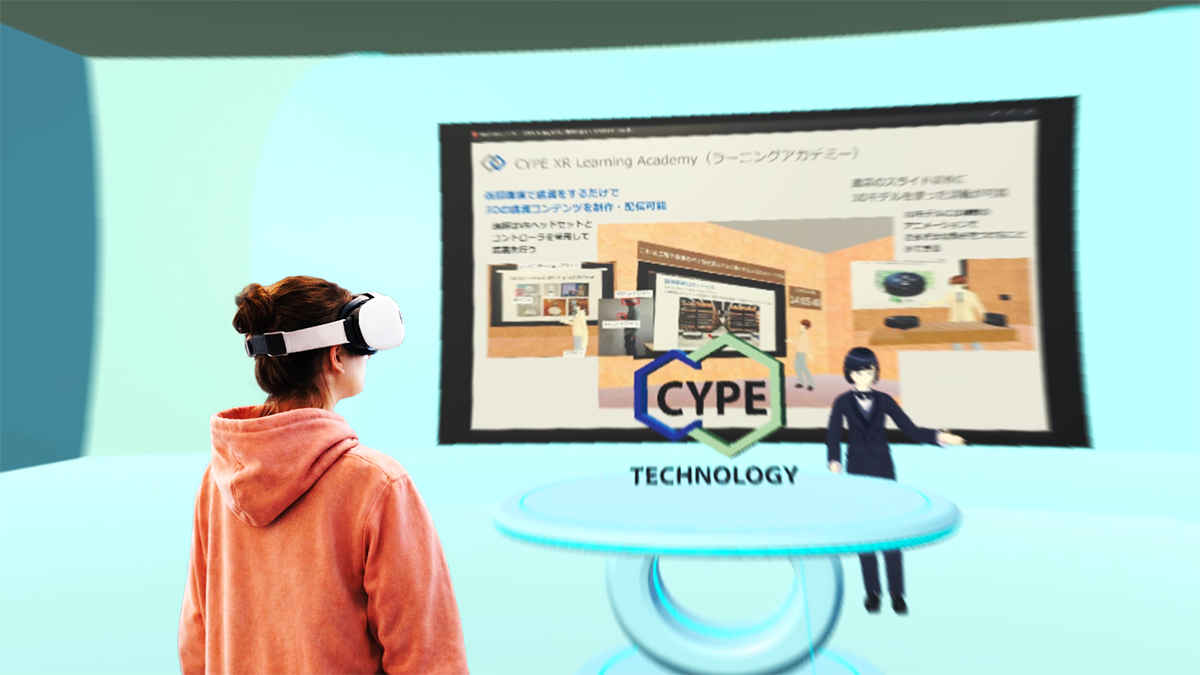
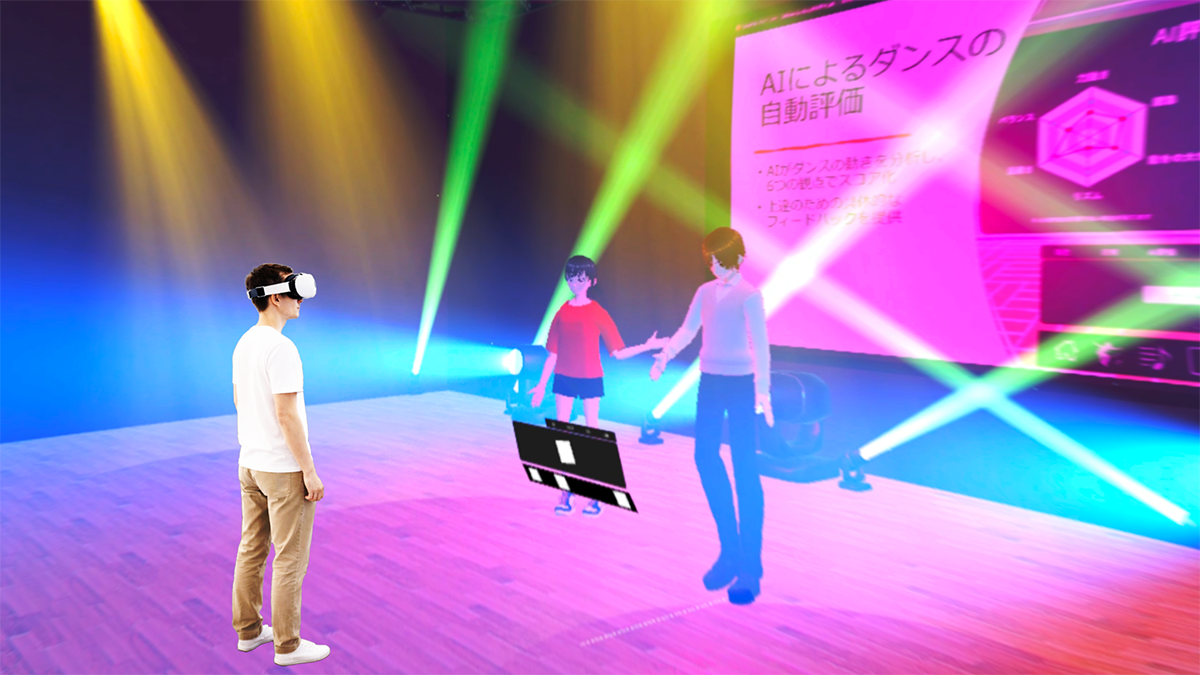
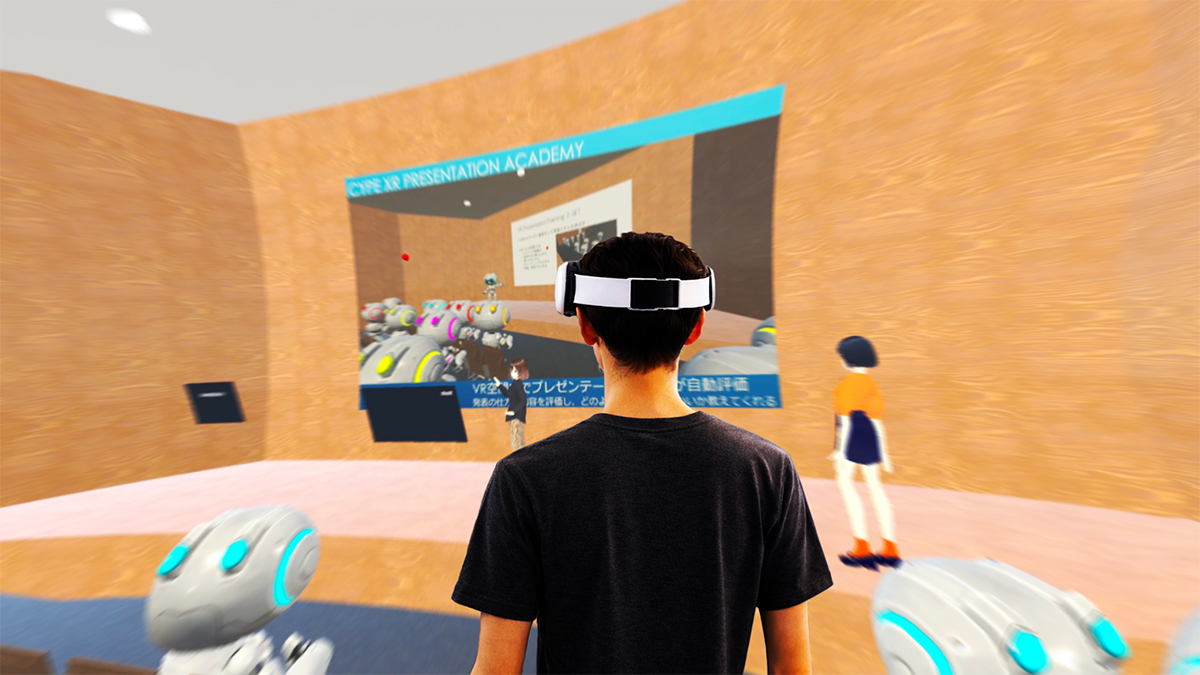
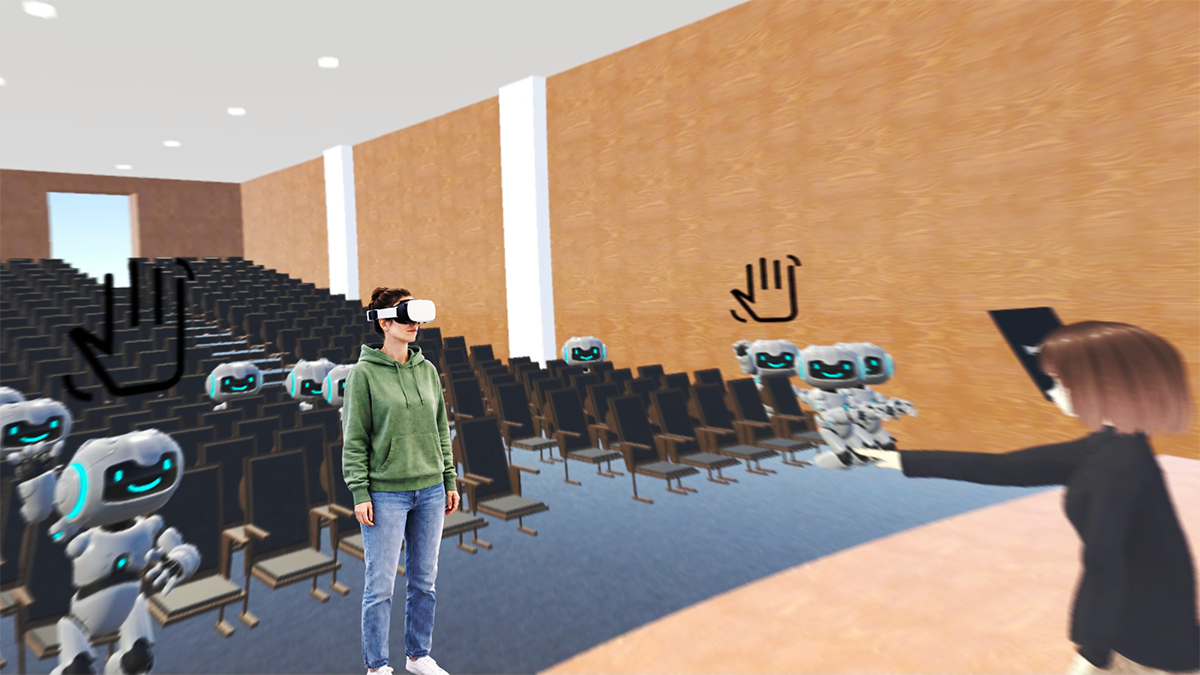
The videos published on YouTube's CYPE Tech. Channel were filmed using VR technology. Therefore, they can be viewed in a 3D immersive environment. The application for viewing is CYPE Immersive Viewer, developed by our company. We are releasing this app free of charge. Please download it from the link below and install it on your VR headset using the method described below to enjoy the immersive videos.
Log in with your Meta account
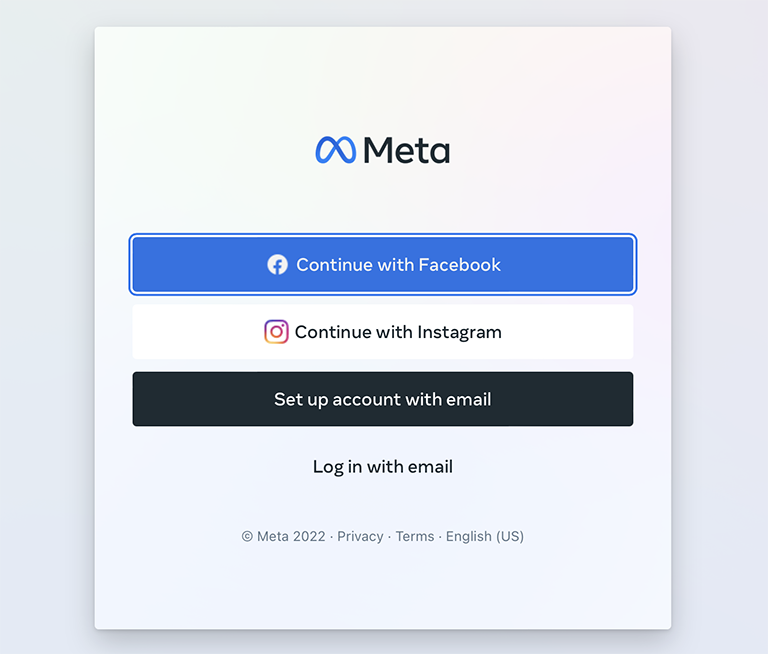
Launch the app and log in with your Meta account. If you don't have an account, create a new one within the app.
Register your Meta Quest with the app
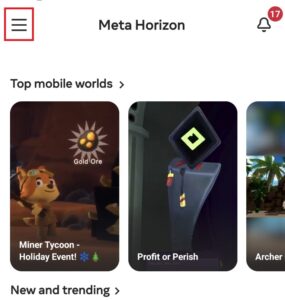
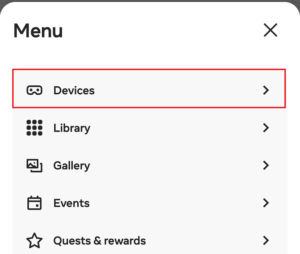
Within the app, tap the three-line button in the upper left corner.
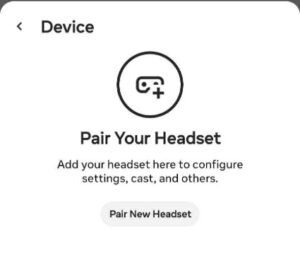
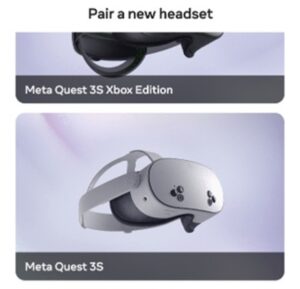
Open the “Devices” section and select “Pair Your Headset”.
Select your Meta Quest and follow the on-screen instructions to complete registration.
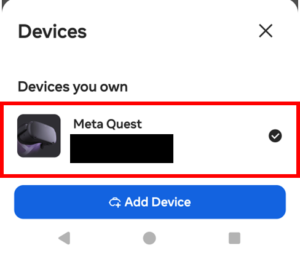
Once registration is complete, the connected device will appear within the app.
Within the app, tap the three-line button in the upper left corner.
Open the “Devices” section and select “Pair Your Headset”.
Select your Meta Quest and follow the on-screen instructions to complete registration.
Once registration is complete, the connected device will appear within the app.
For detailed setup instructions, please refer to this video.
Enabling Developer Mode
Within the app, tap the three-line button in the upper left corner.
Select the Meta Quest you want to connect from the “Devices” section.
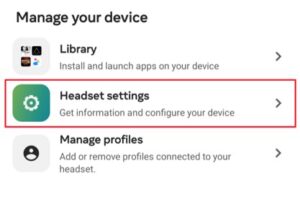
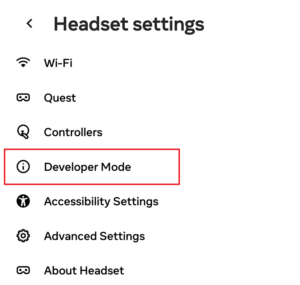
Open “Headset settings”.
Tap “Developer Mode” and turn the switch on.
Within the app, tap the three-line button in the upper left corner.
Select the Meta Quest you want to connect from the “Devices” section.
Open “Headset settings”.
Tap “Developer Mode” and turn the switch on.
You may be prompted to create a Meta developer account if necessary. If so, please visit Meta for Developers to complete your registration.
Restart the headset
After enabling Developer Mode, restart your Meta Quest.
4. Installing CYPE Immersive Viewer
1.Connect your Meta Quest to your PC using a USB cable.
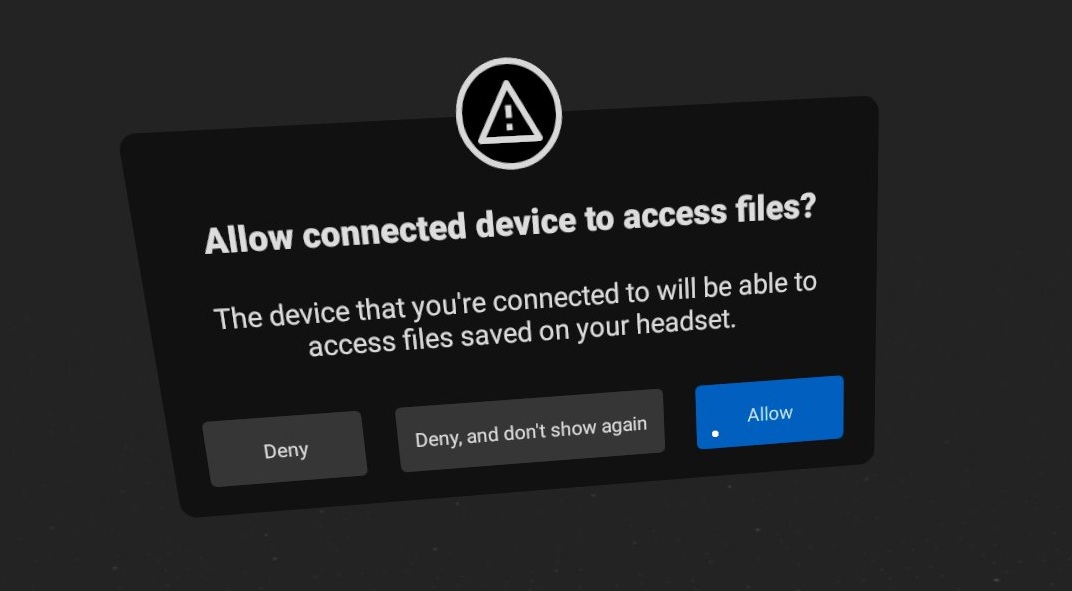
2.If a pop-up appears inside the Meta Quest headset asking to allow the connection, select “Allow”.
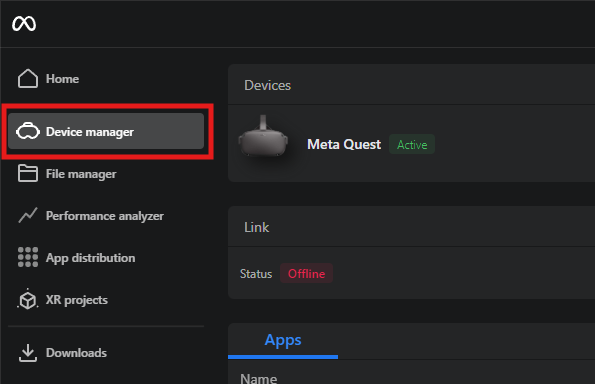
3.Launch the Meta Developer Hub installed on your PC and verify that the connected Meta Quest is recognized.
4.Open the Device Manager tab in the Meta Developer Hub and confirm that the connected Quest device is displayed.
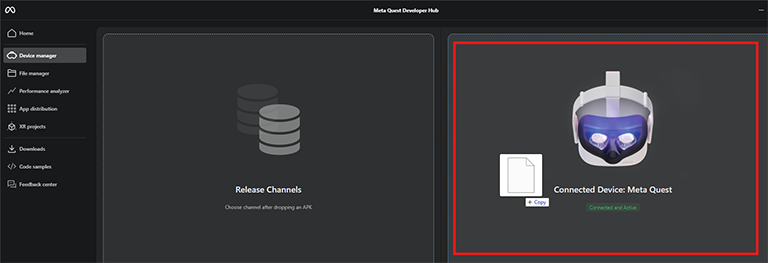
5. Drag and drop the application file (APK format) for CYPE Immersive Viewer provided by our company into the “Connected Device” section displayed in the Device Manager window of the Meta Developer Hub to begin installation.
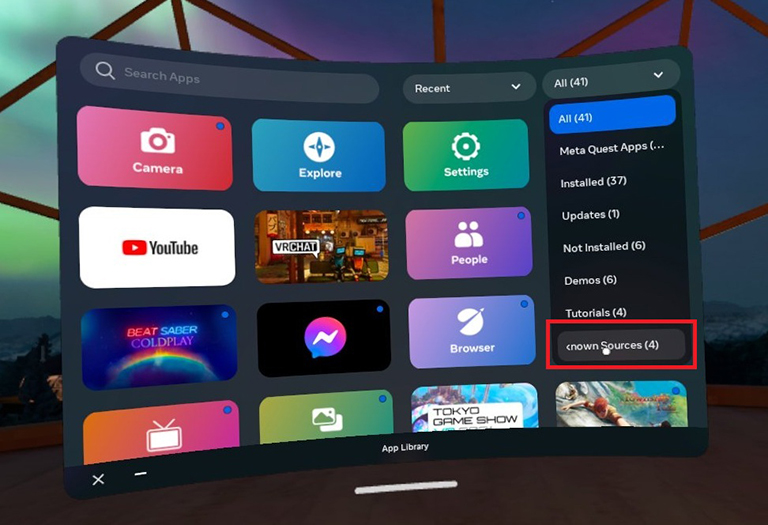
6. Once installation is complete, CYPE Immersive Viewer will appear in the Meta Quest app list.
At this time, the app list may contain a category such as “Unknown Sources” or “Apps from Unknown Sources,” and the app may be installed within it.
7. Put on your Meta Quest headset, then select CYPE Immersive Viewer from the application menu to launch it.
How to Use the App
CYPE Immersive Viewer is an application that allows you to experience immersive VR videos within a 3D space.
By selecting content published on the server from a list, downloading it, and playing it,
you can view it with a 360-degree free viewpoint or experience it while walking around within the space.
In addition to VR mode, it also supports MR (Mixed Reality) mode, which overlays the content onto the real world, allowing you to select the display mode that best suits your application.
How to Use the XR Controller
This app can be operated intuitively using XR controllers.
Basic Operations
Trigger button
Used for selecting and clicking panels and buttons.
Pressing a button or thumbnail while aligning the ray (light beam) with it confirms the selection.
Grip button
Place the ray toward the floor, then move by pushing or pulling while holding the button.
You can move with a dragging sensation within the space.
A/X button
Toggles the display of the panel.
Useful when you want to focus on watching.
Usage Flow
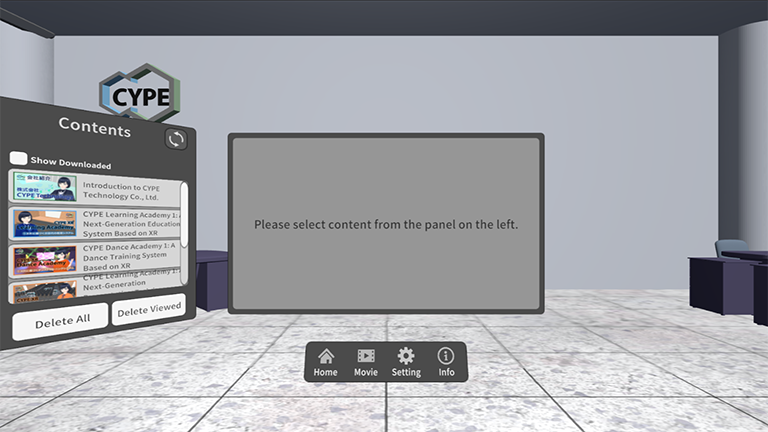
1. Launch the app
When you launch the app, it automatically connects to the server and loads a list of available content
(However, you must connect your headset to the internet beforehand).
Left side of screen: Content list panel
Front of screen: Details panel for selected content
Bottom of screen: Menu panel
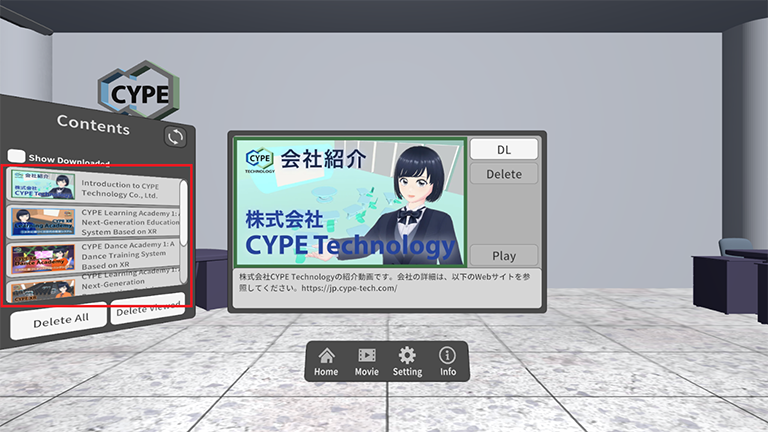
2. Content selection
Select the content you wish to view from the content list panel on the left.
Clicking a thumbnail displays its information in the main detail panel.
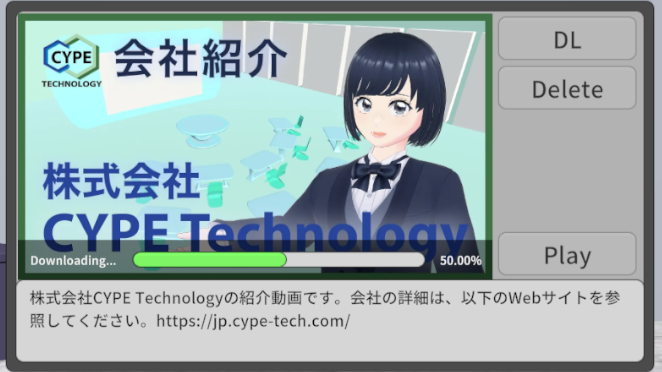
3. Content download (First time only)
Click the “DL” button to start downloading any undownloaded content.
You can check the progress using the progress bar.
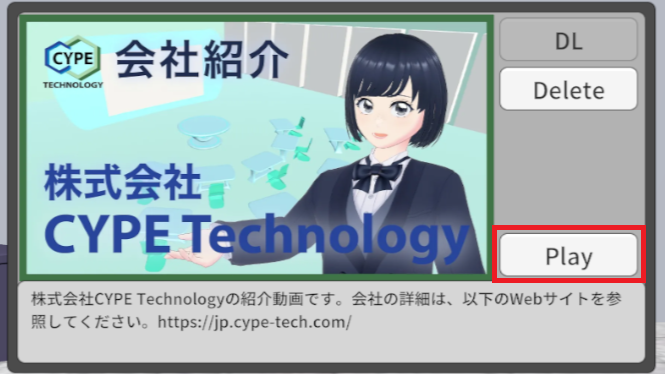
Once the download is complete, the “Play” button will become active.
4. Content playback
Clicking the "Play" button will begin loading your viewing environment.
After loading completes, content playback will start automatically.
5. Operations during playback
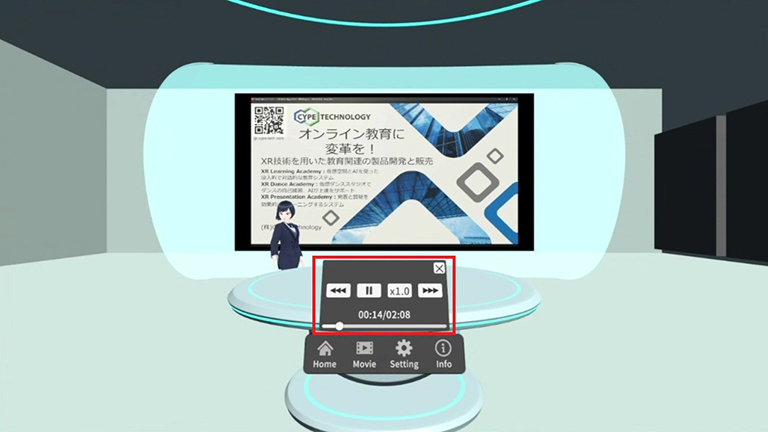
During playback, you can display the playback control panel by clicking the "Movie" button in the bottom menu.
Rewind/Fast forward in 10-second increments
Change playback time using the seek bar
Adjust playback speed
6. Changing the settings
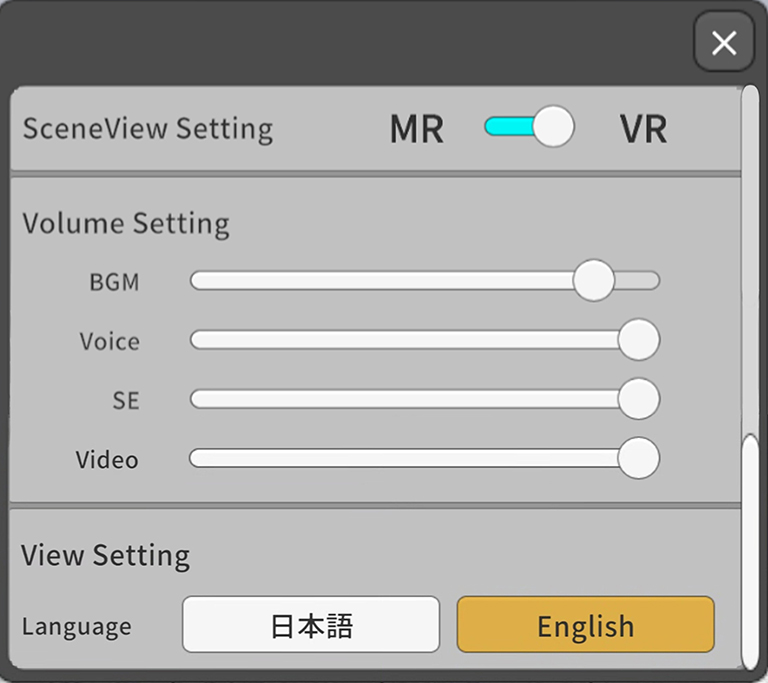
You can access various settings by clicking the "Setting" button in the bottom menu.
Scene view settings
Switching between VR and MR
In MR mode, the virtual environment is hidden, allowing you to see the actual space around you.
Volume settings
You can adjust the volume of BGM, avatar voices, sound effects, and videos individually.
Language settings
You can switch between Japanese and English (however, the language of text or audio within the content will not change).
7. When viewing other content
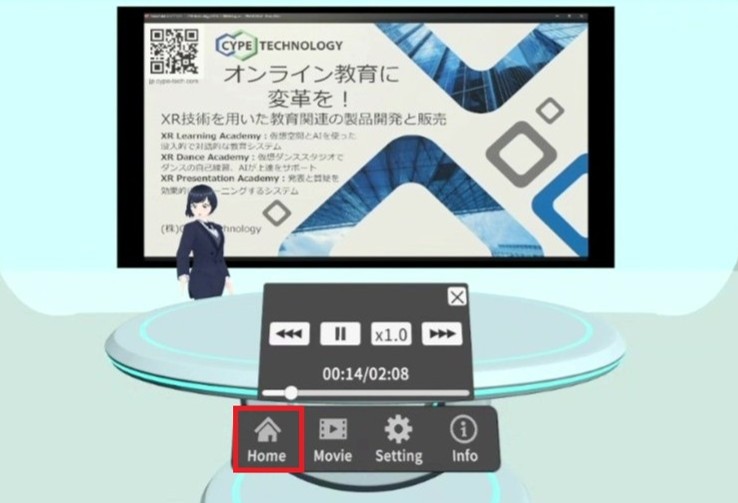
Press the "Home" button in the bottom menu to return to the content selection screen.
Select another content item from the left list panel.
8. Content removal
You can delete downloaded content to free up storage space.
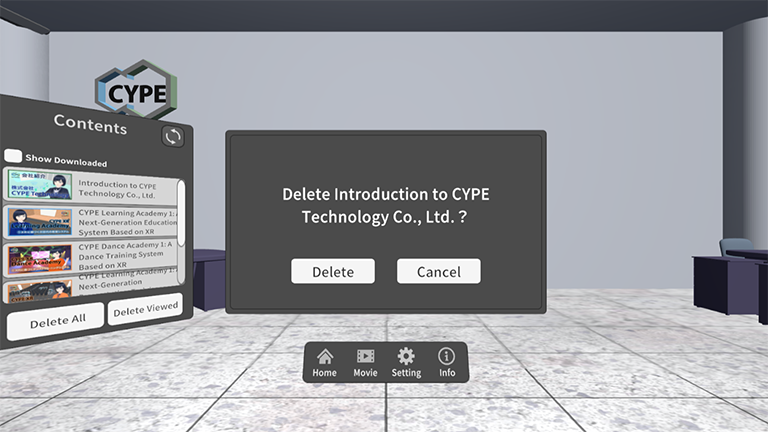
Select the content you wish to delete from the content list panel on the left.
Click the "Delete" button displayed in the content details panel in front.
A confirmation panel will appear.
Selecting "Yes" will delete the content.
However, content currently loading for playback will not be deleted. Please delete it after loading other content.
Additionally, if you wish to watch deleted content again, you will need to download it anew.
Contact us
If you're interested in creating and publishing immersive VR videos like ours, please feel free to contact us.
We use cookies on our website to give you the most relevant experience by remembering your preferences and repeat visits. By clicking you consent to the use of ALL the cookies.Read MoreACCEPTREJECT
Manage consent
Privacy Overview
This website uses cookies to improve your experience while you navigate through the website. Out of these, the cookies that are categorized as necessary are stored on your browser as they are essential for the working of basic functionalities of the website. We also use third-party cookies that help us analyze and understand how you use this website. These cookies will be stored in your browser only with your consent. You also have the option to opt-out of these cookies. But opting out of some of these cookies may affect your browsing experience.
Necessary cookies are absolutely essential for the website to function properly. This category only includes cookies that ensures basic functionalities and security features of the website. These cookies do not store any personal information.
Any cookies that may not be particularly necessary for the website to function and is used specifically to collect user personal data via analytics, ads, other embedded contents are termed as non-necessary cookies. It is mandatory to procure user consent prior to running these cookies on your website.